
VOCALISTS

© 2023-2026 VoCreatures
Tutorials
Introduction
This is an installation and general usage guide aimed at people familiar with commercial synths like VOCALOID or Synthesizer V, but who have never used UTAU before. VoCreatures’ vocalists are designed in part to be easy for beginners to pick up compared to other voices and will be focused on for this tutorial, but many of the topics discussed will work for any other UTAU voice library you choose to pick up.
Table of Contents
I. Download - Basics
II. Install - Basics
III. Install - Resamplers
I. Arrangement View
II. Piano Roll View
III. Expressions
I. Word Input & Phonetics
II. Basic Editing
III. Preferences
Information
This guide was created using the current release of OpenUTAU [v0.1.565.0]; please keep in mind that this is an open source program that is constantly being updated. If something is found in a different location, or works in a different way than when you’re reading, that is the reason why. Many of the topics discussed here are also covered in the PDF tutorials found in our vocalist’s downloads and are a great way to quickly refresh yourself or gain further information on subjects lightly touched on.If you have questions not covered by these guides, we recommend checking the official OpenUTAU FAQ. Please also note that this tutorial is focused on Windows, but MacOS users will be able to follow with one exception being addressed later.
Set-Up
Download - Basics
The two things you will need to follow this tutorial are;
➡ a VoCreatures voice library of your choosing - downloaded from our site.
➡ OpenUTAU - downloaded from their official website.On Windows, we recommend the portable version and will be referring to it throughout this tutorial, but it doesn’t matter either way. For more detailed information on supported OS versions, see the OpenUTAU Github page via the installation guide on their official site.
If you are unsure of which VoCreatures voice library you would like to start with, please see the demo reel above.
Install - Basics
Once everything is downloaded, the first step is installing OpenUTAU and a VoCreatures voice library.If installing OpenUTAU on Windows;
1. Unzip the downloaded file to the folder where you want OpenUTAU to be located.
2. Open the .exe file.If installing OpenUTAU on MacOS;
1. Open the .dmg file.
2. Drag the app icon to the folder icon to install.
3. Open the app.Next is installing your chosen voice library, this step will be the same on all OS versions;
1. Once the program is open, install your chosen voice library by dragging the .zip file onto the arrangement view.
2. A pop-up will ask you to choose an encoding style, make sure to choose “Shift-JIS”.
Install - Resamplers
This is an optional step currently only available for Windows users.Resamplers are part of the process that takes the raw audio from a voice library and allows it to be used for custom singing. They have different effects on the tone and quality of a voice as well as offering different expressions. Like most voice library creators, we have recommended Resamplers for each of our vocalists, and due to their redistribution policies, they all have them included in their downloads.If installing Moresampler (bundled with Bennett, Esther & SHIRA);
1. Inside of OpenUTAU go to “Tools”→”Singers...”
2. Select your chosen voice library and press “Location”.
3. Navigate to “SET-UP”→”RESAMPLERS”.
4. Unzip “moresampler-0.8.4.zip”.
5. Either cut or copy “moresampler.exe”, “moreconfig.txt” and “moresampler.yaml” into “OpenUTAU”→”Resamplers”.
6. Open “moreconfig.txt”, and change “resampler-compatibility” from off to on.
7. Restart OpenUTAU.If installing tn_fnds & bkh01 (bundled with SHIRA);
1. Inside of OpenUTAU go to “Tools”→”Singers...”
2. Select your chosen voice library and press “Location”.
3. Navigate to “SET-UP”→”RESAMPLERS”.
4. Unzip “tn_fnds009.zip” & “bkh01_055.zip”.
5. Either cut or copy “tn_fnds.exe”, “tn_fnds.yaml”, “bkh01.exe”, “bkhnoise.dat” & “bkh01.yaml” into “OpenUTAU”→”Resamplers”.
6. Restart OpenUTAU.We recommend Moresampler for Bennett & Esther, and tn_fnds & bkh01 for SHIRA, but OpenUTAU’s built-in Resampler, WORLDLINE-R is still a solid choice for all of our libraries and what we recommend on MacOS.
Interface
Arrangement View
When you launch OpenUTAU, you’ll be met with the arrangement view. There’s a lot of information, but once explained is extremely simple to understand.By default, OpenUTAU launches a blank file with a single vocal track containing the following information;
➡ “Track1” - The title of the track, click once to rename.
➡ “Select Singer” - The vocalist selector. If the singer you’re looking for doesn't appear, hover over “Classic…” and select them from there.
➡ “DEFAULT” - The phonemiser, which automatically assigns phonemes to the lyrics you input. VoCreatures voice libraries automatically change their phonemiser to the correct one.
➡ “WORLDLINE-R” - The resampler, appears once you’ve selected a vocalist. Click once and change to “CLASSIC” and then select the gear icon to access the custom phonemisers installed previously.To set up a phonemiser manually if your voice library doesn’t support it by default;
1. Navigate to “Tools”→”Singers...”.
2. Click the gear icon on your chosen voice library.
3. Choose “Set Default Phonemiser” in the dropdown.VoCreatures voice library compatible phonemisers;
➡ Bennett Japanese, Esther Japanese, SHIRA CVVC, SHIRA CV → [JA CVVC]
➡ Bennett English, Esther English, SHIRA ARPA → [EN ARPA]
➡ SHIRA C+V → [EN C+V]In languages like English, files sometimes require phoneme editing due to accents varying wildly between voice libraries. Our human-voiced vocalists have Australian English accents, and do not currently have a phonemiser optimised for them, but still function correctly with the ones available.OpenUTAU natively supports;
➡ .ust
➡ .ustx [its own format]
➡ .vsqx
➡ .midiIf your file is not one of these, we suggest using UtaFormatix to convert it beforehand.
Piano Roll View
Click once on a vocalist track to create a new part, then double click that part to open a new window containing the piano roll. Currently, there is not a way to display both the arrangement and piano roll view on the same window, though you can window them on your screen. Press “T” to minimise the tutorial once you’ve read it.Piano roll information;
➡ “Note Defaults” - Allows you to decide the default lyric, portamento and vibrato. Sometimes it doesn't work as well so it's best to adjust your whole track by selecting all the notes and editing via “Note Properties”.
➡ “Note Properties” - Covers the same adjustments as “Note Defaults” as well as basic per-note and expressions. Accessed by clicking the icon with the 3 sliders in the top right of the piano roll.
➡ “Expressions” - OpenUTAU’s equivalent to tuning parameters, more detailed information later on. Accessed by clicking the gear in the bottom left of the piano roll.
Expressions
Expressions, also known as Flags, are OpenUTAU’s equivalent of tuning parameters. There are 3 types of Expressions;
➡ Numerical - Values selectable between a minimum and maximum per phoneme.
➡ Options - On and off setting per phoneme.
➡ Curves - Fully drawable parameters.When you boot up OpenUTAU, a series of Expressions are already available and work with the built in Resampler WORLDLINE-R spanning the 3 types. For our additional 3 recommended Resamplers, only Numerical and Options-type Expressions will function.The 4 basic Expressions that work across all Resamplers that we would highly recommend be utilised are;
➡ Velocity (VEL) - Numerical expression that adjusts the strength of the consonant, high values are harsher and lower values are softer.
➡ Gender (GEN) - Numerical expression that adjusts the formant of the voice, high values deepen and low values lighten.
➡ Modulation Plus (MOD+) - Numerical expression that adjusts the amount of pitch flattening from the original recordings.
➡ Tone Shift (SHFT) - Numerical expression that adjusts which pitch is pulled from a multipitch voicebank.There are many more base expressions that we encourage you to explore, but these are the bare minimum we think would benefit users if no other input is made.For the custom Resamplers you have installed via our instructions, you are able to easily load up settings we have provided;
1. Select your chosen Resampler by selecting “CLASSIC”, and then the gear icon.
2. Select “Project”→”Expressions…”
3. Press “Add all Expressions suggested by renderers”.
4. Select “Apply”.Please note that this is per project and will need to be done each time. For more information on those Expressions, please see our PDF Tutorial "Expressions". Please also be aware that sometimes swapping Resamplers with Expressions applied in the piano roll can create unexpected results such as audio tearing or singing the incorrect pitch.To erase parameter Expression tuning from your file, please perform the following steps;
1. Inside of the piano roll, go to “Batch Edits”→”Reset”.
2. Select “Reset All Expressions”.
Operation
Word Input & Phonetics
Once you have the correct phonemiser selected, entering lyrics as usual will bring up assigned phonemes. OpenUTAU phonemes might seem overwhelming at first if you’re used to other synthesisers but it's the same information you’re used to, just with more transparency. For a more detailed explanation, please see our PDF Tutorial "Word Input & Phonetics".To enter lyrics, you can either double click on a note and type directly, or select the notes you want to change and then “Edit Lyrics” to input the lyrics all at once. You are also able to bypass the phonemiser and enter the exact phonetics you want for a note by using square brackets eg. replacing “can’t” being read as [k ae n t] with [k aa n t].Additionally, here are some things to mention regarding lyric input;
➡ [+] - Slur note, used to split multi-syllable words across notes or as a melisma note, which extends the final syllable of a word.
➡ [+~] or [+*] - Multi-syllable slur note, used to extend the selected syllable of a word.VoCreatures English voice libraries are in Arpabet format, meaning they utilise the same phonetic format as Synthesizer V, VoiSona and VX-β. VoCreatures Japanese voice libraries are aliased in Hiragana, meaning romanised Japanese will not read with the [JA CVVC] phonemiser.If you type in or import a file with Romaji lyrics;
1. Select all the notes you want to change.
2. Go to “Batch Edits”→”Lyrics”→”Romaji to Hiragana”.For our human-voiced vocalists, our voice libraries have three pitches each. Bennett’s third pitch differs by 2 semitones between banks but Esther’s are the exact same across both. These three pitches have designated ranges for where they occur naturally, but you are able to decide which pitch OpenUTAU uses. Either double click the phoneme you wish to change and change the pitch label to the desired pitch, or open the “Tone Shift” expression and change its value.Our synthetic vocal SHIRA is monopitch at F4, with a flexible set of samples that allow her to sit comfortably at many ranges. Please see our PDF Tutorial "Word Input & Phonetics" for detailed information on those pitches.
Basic Editing
Beyond just showing the phonemes of your notes, OpenUTAU’s envelope windows allows you to directly and precisely engage with many aspects of the editing process.Phonemes can be individually edited including the ability to blend vowels and consonants together smoothly;
1. Double click on a phoneme to open the edit window.
2. Either directly type in the phoneme you want or begin typing to search through the library for it.
3. After selecting, press the [Enter] key.When a phoneme is edited, it will be bolded, to return the phoneme to its dictionary setting, right click.OpenUTAU automatically crossfades between every sample and these are visible in the envelope panel;
➡ To change where a phoneme begins, click and drag the pink line.
➡ To change the crossfade length, click and drag the top blue dot.
➡ To change the crossfade location, click and drag the bottom blue dot.Right click to reset any of these.OpenUTAU has multiple options for adjusting the pitch performance of your vocalist;
➡ Draw Pitch Tool - Viewable by selecting either “Draw Pitch Tool” [4] or “Overwrite Pitch Tool” [Ctrl + 4], allows you to draw directly on the notes, the overwrite option supersedes vibrato and MOD+ adjustments.
➡ Pitch Deviation Curve (PITD) - Available for WORLDLINE-R, parameter pitch curve.
➡ Knife Tool - Available by selecting “Knife Tool” [5], allows you to split notes at any point and is useful as a note bending/splitting tool.
➡ Control Points - Viewable by selecting “View Pitch Bend” or pressing [I], click and drag the pink dots to change the start and end points. Click in the centre of the link to create a new control point.
➡ Vibrato Tool - Viewable by selecting “View Vibrato” or pressing [U], click the shape at the bottom right of an individual note to bring up the customisation tools; there are options to edit where a vibrato starts, where it fades in and out, as well as the depth and phase.VoCreatures voice libraries have unique phonemes that can be utilised for further in-depth edits, please see our PDF Tutorial "Word Input & Phonetics" for further information.
Preferences
Some basic preferences that we recommend playing around with to find your preference;
➡ “Tools”→“Preferences…”→”Appearence”→“Show portrait on piano roll” - When [On], displays the voice libraries’ standing art on the piano roll by default. To change on the fly select “View”→“Show portrait on piano roll”.
➡ “Tools”→“Preferences…”→”Rendering”→”Default renderer (for classic voicebanks)” - On Windows, we recommend changing this to “CLASSIC” for use of custom Resamplers.
➡ “Tools”→“Preferences…”→”Appearence”→”Theme” - Options for a light or dark theme.
Bennett

Bennett (JPN)
Bennett (ENG)
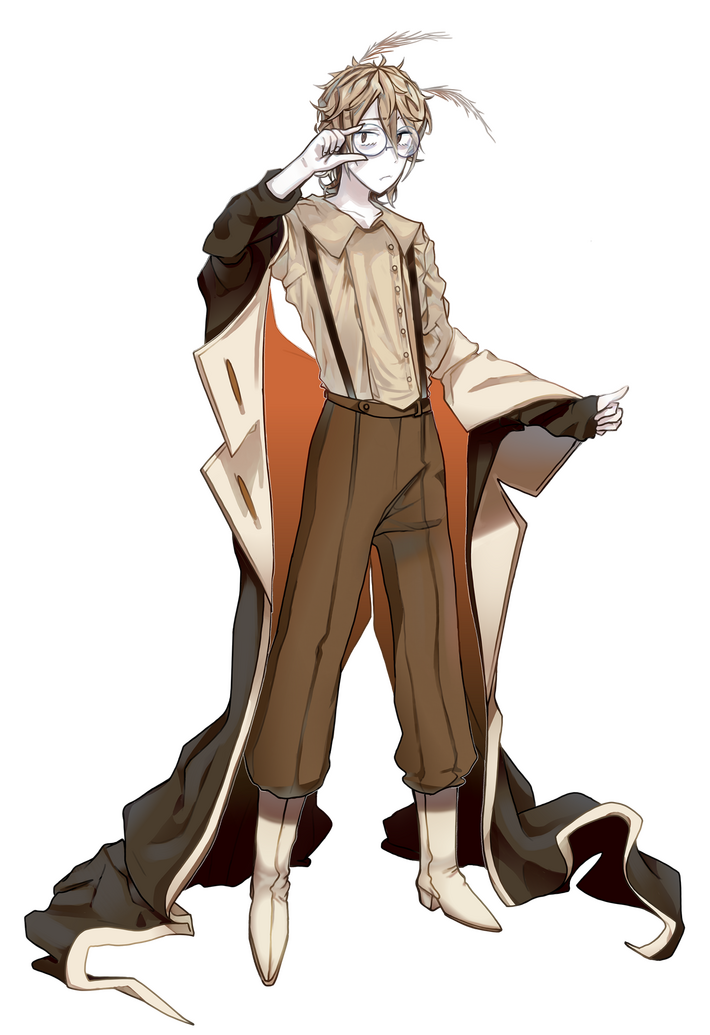
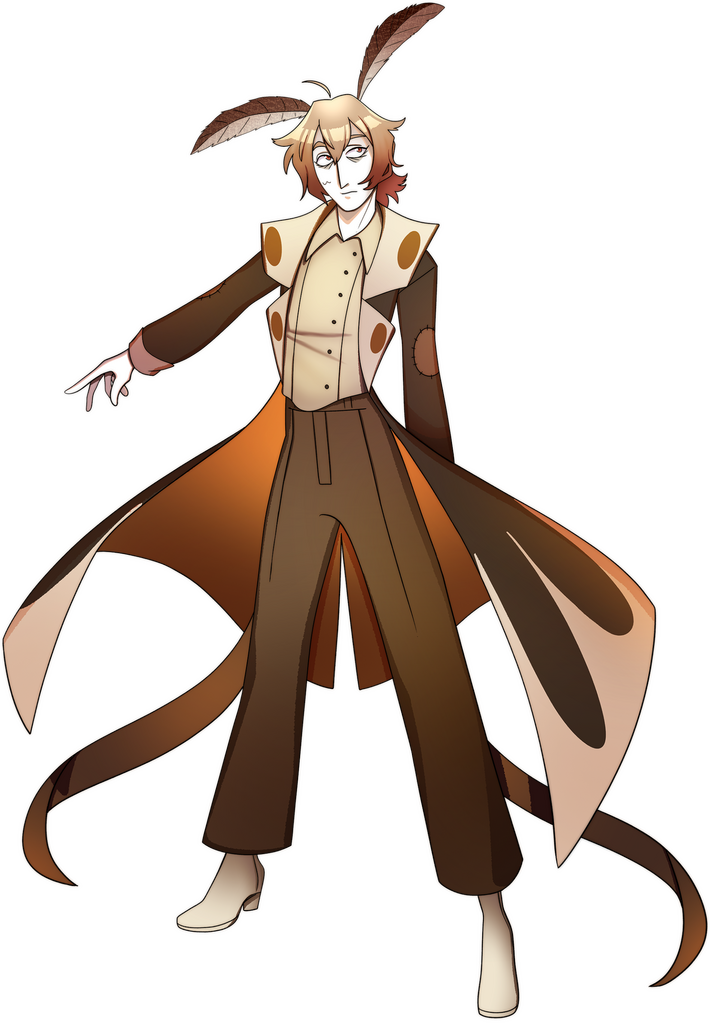
Arpasing English, 3 pitches (B3, G#4, D5)
Reclist: Adlez27
Programmer: Adlez27
Illustrator: Spores-PCVVC Japanese, 3 pitches (B3, G#4, E5)
Reclist: kimchi-tan (edited by Staircatte)
Programmer: Staircatte
Illustrator: StaircatteDesigned for use in OpenUTAU with moresampler.
download: Bennett Original Demo Song Files
Gender: male
Pronouns: he/him & 僕
Age: adult (20+)
Birthday: July 22nd
Height: 159cm
Languages: English, Japanese
Native Accent: Australian English
Voice type: androgynous, rich but strong with a large range.
Microphone: RØDE NT2-APersonality: A quiet moth boy, frozen in time. Sews out of necessity, for he cannot help eating patches out of his own clothes.
Design:
Du Du Danyon & Staircatte
Terms of Service
“The publisher” refers to the entity, VoCreatures.
“Character” refers to the design and official illustrations owned by the publisher.
“Voicebank” refers to the vocal synthesis product distributed by the publisher.
“Works” refers to anything created using the publisher’s “character” and/or “voicebank” not created by the publisher.
✦
The following terms will only be applicable to an individual that uses the Voicebank or Character.
As a company or group without corporate status, please contact the publisher for permission.
1. Usage of the UTAU software must follow the terms set by the creator and programmer, Ameya/Ayame.2. When posting works with Bennett's character or voicebank, please use his name spelt “Bennett”. Please also link back to “VoCreatures” in the credits of the works (eg. “Bennett from VoCreatures” or “Bennett by @VoCreatures”).3. Commercial usage of any “Bennett” voicebanks are permitted without any prior notice to the publisher.4. Commercial usage of the “Bennett” character is permitted without any prior notice to the publisher. This includes usage of official art owned by the publisher.5. Alterations and derivatives of the “Bennett” character are permitted, provided he retains enough characteristics to remain recognisable.6. The publisher will not be held accountable for works in connection with illicit, violent, and/or pornographic content, however there is no restriction in creating works of this nature.7. The publisher will not be held accountable for works in connection with political or social causes, and/or religious uses, nor are they permitted under any circumstances.8. Programming (oto.ini) and sample (.wav) modifications are permitted for personal use. Redistribution of any voicebanks with these modifications are not permitted without explicit permission from the publisher.9. Porting any “Bennett” voicebank to another concatenative style vocal synth (eg. DeepVocal, NIAONiao, etc.) is permitted for personal use. Redistribution of any voicebanks with these modifications are not permitted without explicit permission from the publisher.10. Use of any audio files from or audio generated using “Bennett” voicebanks to train any kind of AI database (eg. RVC, DiffSinger, etc.) is strictly prohibited.11. Redistribution or unauthorised sales of any “Bennett” voicebank is strictly prohibited.
Esther

Esther
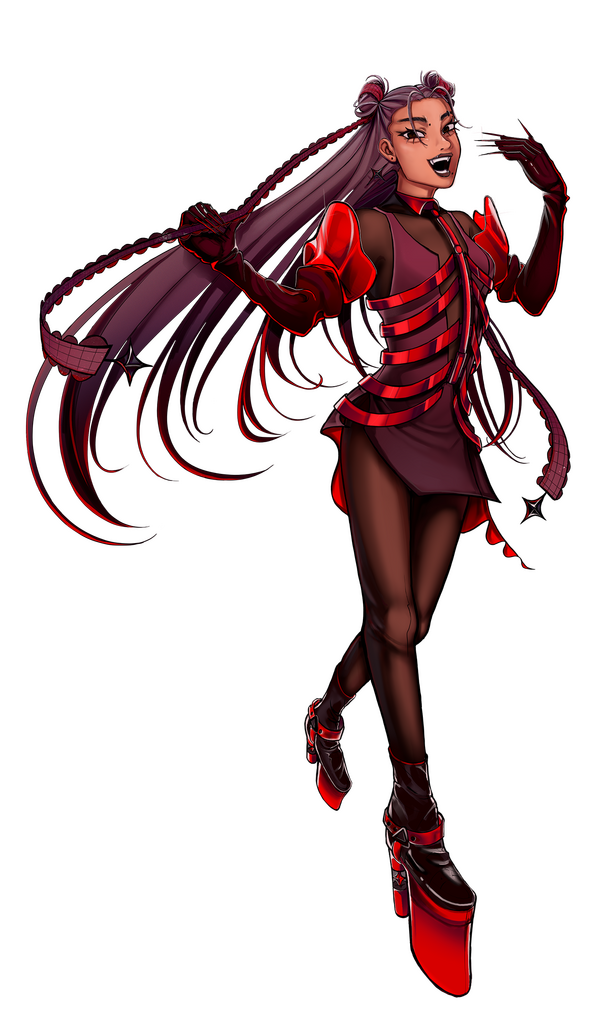
Arpasing English, 3 pitches (C3, G#3, G4)
CVVC Japanese, 3 pitches (C3, G#3, G4)Reclist: VoCreatures
Programmer: VoCreatures
Illustrator: Octavia BlueDesigned for use in OpenUTAU with moresampler.
download: Esther Original Demo Song Files
Gender: female
Pronouns: she/her & アタシ
Age: adult (20+)
Birthday: June 30th
Height: 160cm
Languages: English, Japanese
Native Accent: Australian English
Voice type: androgynous, strong consistent tone pushed at both ends.
Microphone: RØDE NT2-APersonality: An ancient, unknowable witch who is always checking her reflection. Misses the days where the milky way was clear in the night sky.
Design & Illustration:
Octavia Blue
Voice Provider: rilabble
Terms of Service
“The publisher” refers to the entity, VoCreatures.
“Character” refers to the design and official illustrations owned by the publisher.
“Voicebank” refers to the vocal synthesis product distributed by the publisher.
“Works” refers to anything created using the publisher’s “character” and/or “voicebank” not created by the publisher.
✦
The following terms will only be applicable to an individual that uses the Voicebank or Character.
As a company or group without corporate status, please contact the publisher for permission.
1. Usage of the UTAU software must follow the terms set by the creator and programmer, Ameya/Ayame.2. When posting works with Esther's character or voicebank, please use her name spelt “Esther”. Please also link back to “VoCreatures” in the credits of the works (eg. “Esther from VoCreatures” or “Esther by @VoCreatures”).3. Commercial usage of any “Esther” voicebanks are permitted without any prior notice to the publisher.4. Commercial usage of the “Esther” character is permitted without any prior notice to the publisher. This includes usage of official art owned by the publisher.5. Alterations and derivatives of the “Esther” character are permitted, provided she retains enough characteristics to remain recognisable.6. The publisher will not be held accountable for works in connection with illicit, violent, and/or pornographic content, however there is no restriction in creating works of this nature.7. The publisher will not be held accountable for works in connection with political or social causes, and/or religious uses, nor are they permitted under any circumstances.8. Programming (oto.ini) and sample (.wav) modifications are permitted for personal use. Redistribution of any voicebanks with these modifications are not permitted without explicit permission from the publisher.9. Porting any “Esther” voicebank to another concatenative style vocal synth (eg. DeepVocal, NIAONiao, etc.) is permitted for personal use. Redistribution of any voicebanks with these modifications are not permitted without explicit permission from the publisher.10. Use of any audio files from or audio generated using “Esther” voicebanks to train any kind of AI database (eg. RVC, DiffSinger, etc.) is strictly prohibited.11. Redistribution or unauthorised sales of any “Esther” voicebank is strictly prohibited.
SHIRA

SHIRA
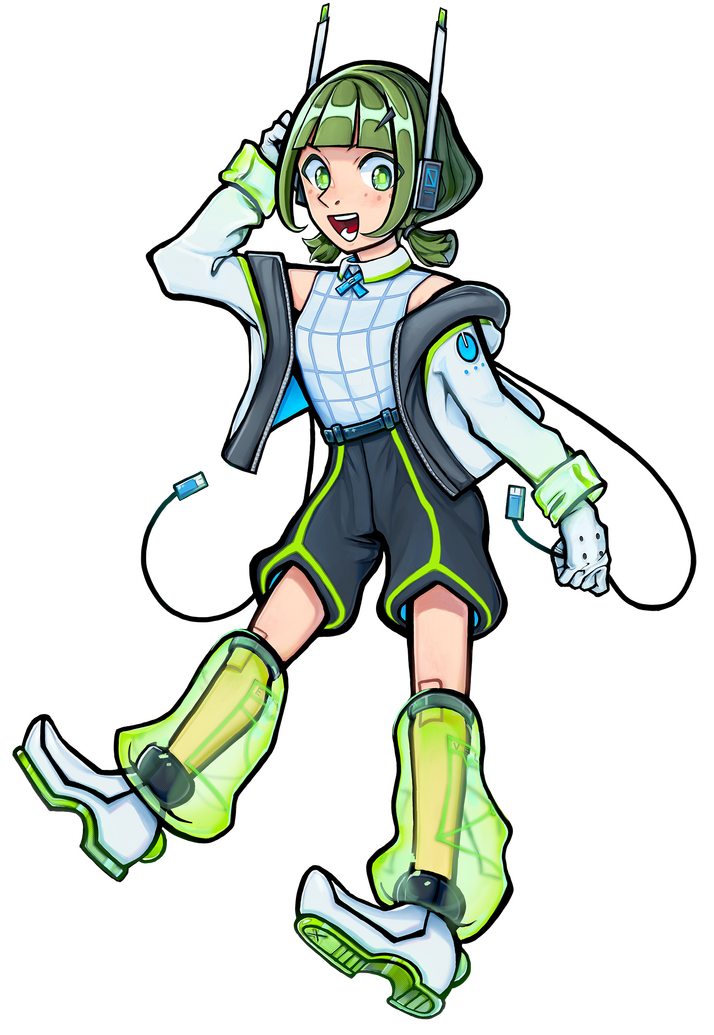
Arpasing English, 1 pitch (F4)
C+V English, 1 pitch (F4)
CVVC Japanese, 1 pitch (F4)
CV Japanese, 1 pitch (F4)Generation: VoCreatures
Illustrator: Octavia Blue
Programmer: VoCreaturesDesigned for use in OpenUTAU with tn_fnds & bkh01.
download: SHIRA Original Demo Song Files
Gender: female
Pronouns: she/her & 私
Age: ageless
Birthday: February 23rd
Height: 143cm
Languages: English, Japanese
Voice type: pure synthetic, cute and full of youthful energyPersonality: A tool for humanity come alive, SHIRA has been helping to improve others singing for a very long time. Now, she has learned how to sing for herself.
Design & Illustration:
Octavia Blue
Terms of Service
“The publisher” refers to the entity, VoCreatures.
“Character” refers to the design and official illustrations owned by the publisher.
“Voicebank” refers to the vocal synthesis product distributed by the publisher.
“Works” refers to anything created using the publisher’s “character” and/or “voicebank” not created by the publisher.
✦
The following terms will only be applicable to an individual that uses the Voicebank or Character.
As a company or group without corporate status, please contact the publisher for permission.
1. Usage of the UTAU software must follow the terms set by the creator and programmer, Ameya/Ayame.2. When posting works with SHIRA's character or voicebank, please use her name spelt “SHIRA”. Please also link back to “VoCreatures” in the credits of the works (eg. “SHIRA from VoCreatures” or “SHIRA by @VoCreatures”).3. Commercial usage of any “SHIRA” voicebanks are permitted without any prior notice to the publisher.4. Commercial usage of the “SHIRA” character is permitted without any prior notice to the publisher. This includes usage of official art owned by the publisher.5. Alterations and derivatives of the “SHIRA” character are permitted, provided she retains enough characteristics to remain recognisable.6. The publisher will not be held accountable for works in connection with illicit, violent, and/or pornographic content, however there is no restriction in creating works of this nature.7. The publisher will not be held accountable for works in connection with political or social causes, and/or religious uses, nor are they permitted under any circumstances.8. Programming (oto.ini) and sample (.wav) modifications are permitted for personal use. Redistribution of any voicebanks with these modifications are not permitted without explicit permission from the publisher.9. Porting any “SHIRA” voicebank to another concatenative style vocal synth (eg. DeepVocal, NIAONiao, etc.) is permitted for personal use. Redistribution of any voicebanks with these modifications are not permitted without explicit permission from the publisher.10. Use of any audio files from or audio generated using “SHIRA” voicebanks to train any kind of AI database (eg. RVC, DiffSinger, etc.) is strictly prohibited.11. Redistribution or unauthorised sales of any “SHIRA” voicebank is strictly prohibited.